
Signed-in reset
Signed-in reset is an account recovery feature. It lets you reset your account password if you’ve lost it, but are still signed in to Proton.
It’s often the easiest way to recover your account if you’re signed in. But it’s still important to have multiple password reset and data recovery methods enabled.
Learn more about account recovery
- How it works
- How to use signed-in reset
- If you receive a password reset notification that you didn’t request
- How to reset your password if you’re not signed in
How it works
If you have another password reset method enabled, you can change your password immediately from your account settings.
If not, you still can request a password reset, but you’ll need to wait 72 hours to actually change your password. During this time, we’ll send notifications to any other devices you’re signed in on. This gives you a chance to cancel the request if you remember your password, or if it wasn’t you who made the request.
If signed-in reset doesn’t meet the requirements of your threat model, you can turn it off once you have another account recovery method enabled.
How to use signed-in reset
Request a password reset
You can request a signed-in reset from:
- Proton Mail (web and desktop)
- Proton Calendar (web)
- Proton Drive (web)
- Proton Pass (web)
If you’re signed in somewhere else, use our QR code sign-in to transfer your session to one of these apps first.
If you have access to a password reset recovery method
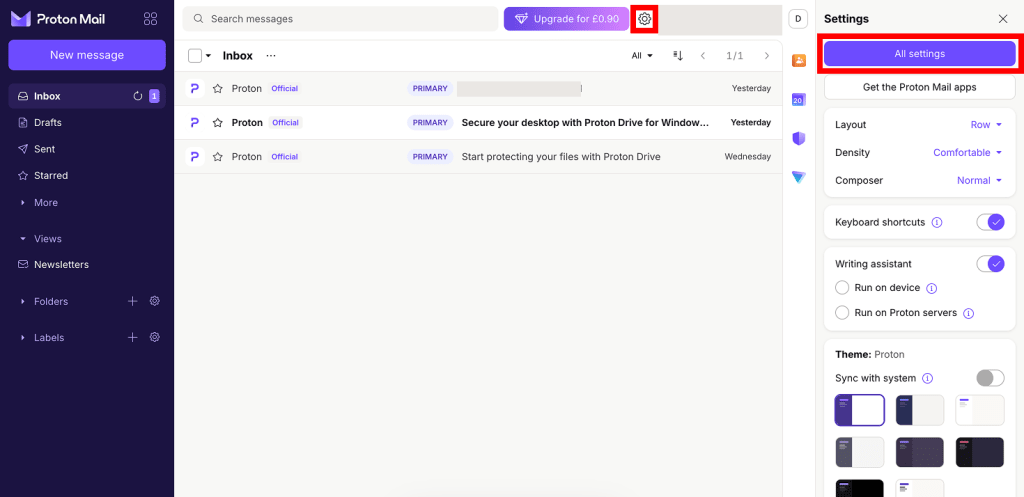
- Open your account settings.
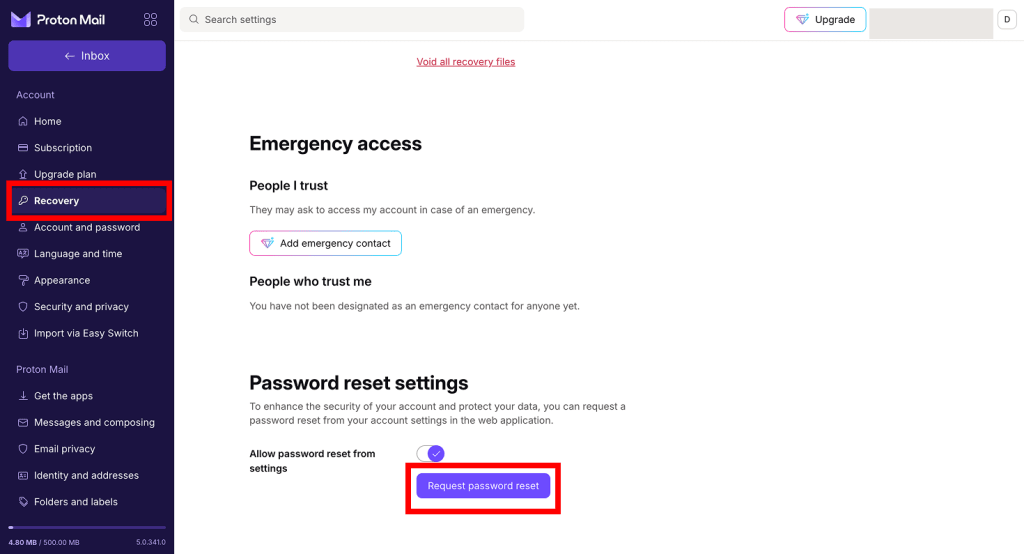
- Select Recovery from the sidebar, then scroll to Password reset settings. Click Request password reset.
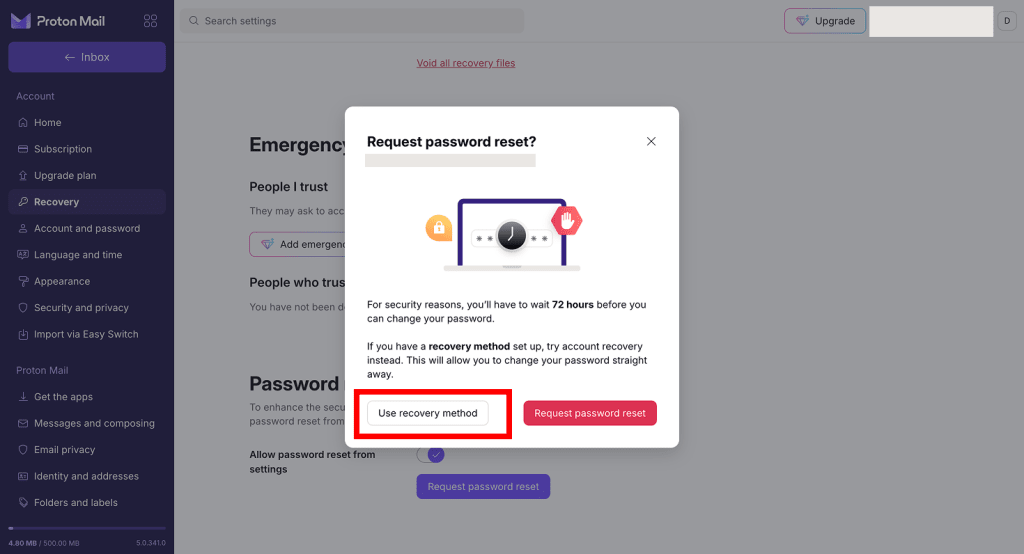
- Select Use recovery method.
- Enter your recovery phrase, or request a verification code by SMS or email.
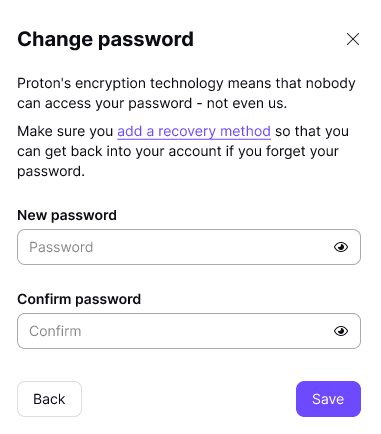
- Enter your new password in the Password and Confirm password fields. Click Save when you’re done.
All done. You can now use your new password on all Proton services. And because you were already signed in, you don’t need to restore your data.
If you don’t have a password reset recovery method
- Open your account settings.
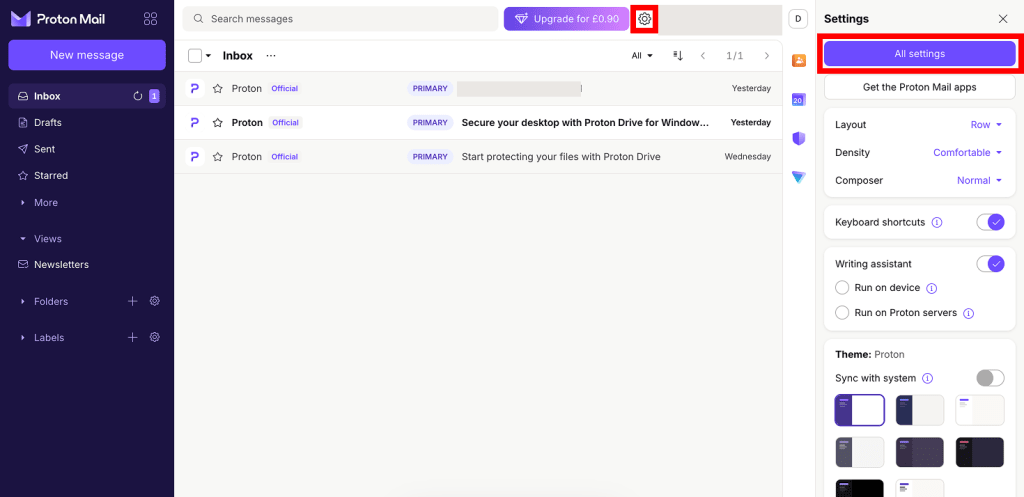
- Select Recovery from the sidebar, then scroll to Password reset settings. Click Request password reset.

- If you’re sure you don’t have access to your recovery phrase, recovery email address, or recovery phone number, click Request password reset.

That’s it — your request has been sent. For security reasons, you’ll need to wait 72 hours before you can change your password.
- During this time, we’ll send notifications to any other devices signed in to your account.
- We’ll send you a notification when it’s time to change your password.
- If you remember your password during this time, cancel your request.
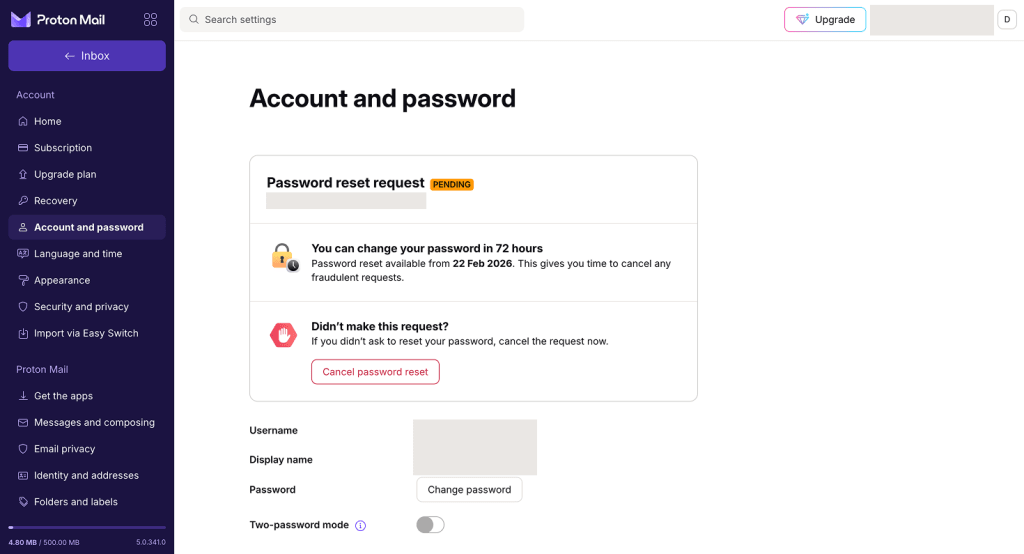
Alternatively, you can request a password reset by going to your account settings, selecting Account and password from the sidebar, then clicking Change password.
Reset your password
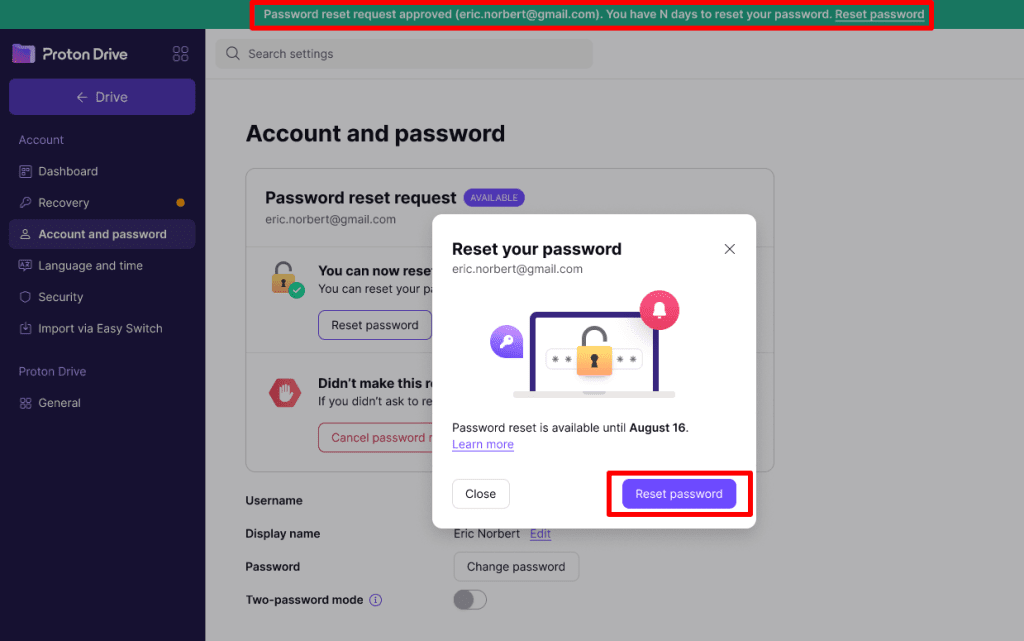
If you haven’t canceled your signed-in reset request after 72 hours, you’ll get an email and push notification to confirm that it’s time to reset your password. You’ll also see a notification banner in your Proton web apps.
- Click the notification or reopen your account and password settings. Click Reset password.
You must reset your password in the same browser you made your request from. If you click the notification and it opens a different browser, switch back to your original browser and open your account settings manually.
- Enter your new password in the Password and Confirm password fields. Click Save when you’re done.
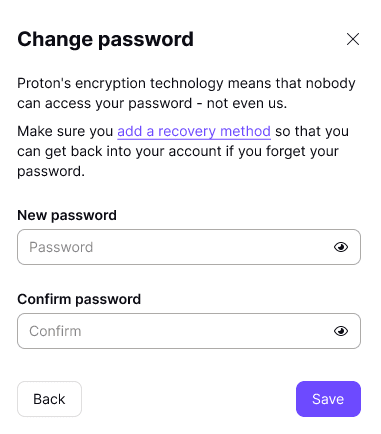
All done. You can now use your new password on all Proton services. And because you were already signed in, you don’t need to restore your data.
Cancel a signed-in reset request
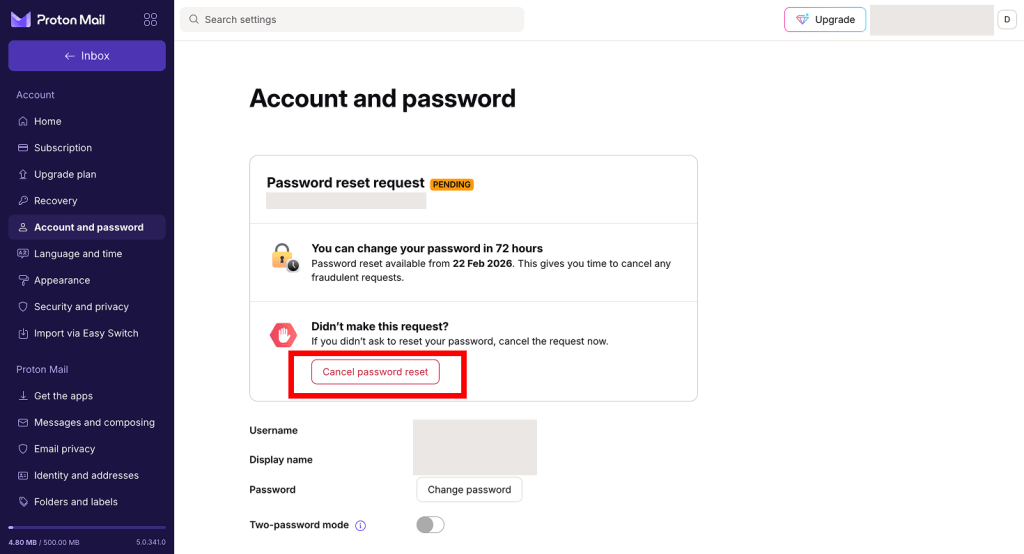
- Sign in to your Proton Account. Open your account settings (Settings ⚙️ → All settings), then select Account and password from the sidebar.
You can also open the request directly from any emails or notifications you received about the password reset request. Just click the notification or the link in the email.
- Click Cancel password reset.
- You’ll be asked to authenticate. Enter your password, then click Cancel password reset to confirm.
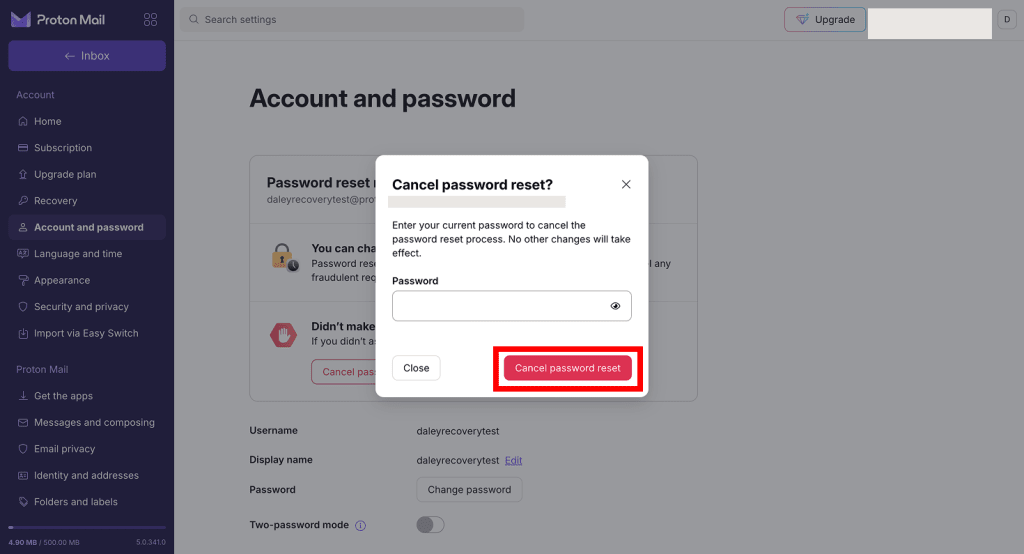
All done — the password reset request is canceled.
If you didn’t make the password reset request and you think it may have been fraudulent, change your password as soon as possible. You should also consider:
- Revoke all sessions: this signs you out from all devices aside from the one you’re using
- Enable two-factor authentication for increased account security
Disable signed-in reset
To disable this feature, you need to have at least one password reset method enabled. You can do this in your account settings.
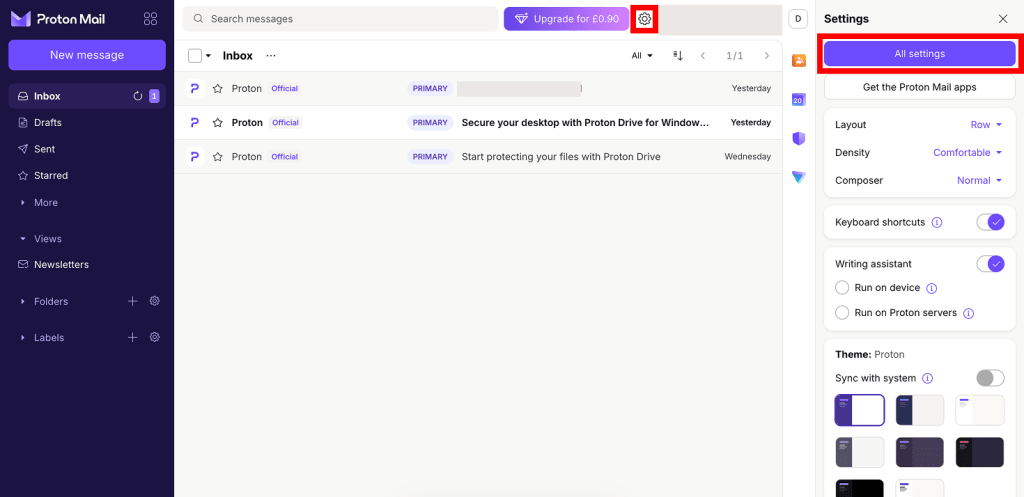
- Sign in to your Proton Account. Open your account settings (Settings ⚙️ → All settings), then select Recovery from the sidebar.
- Scroll to Password reset settings and turn off the Allow password reset from settings toggle.
- Read the information on the pop-up. If you’re sure you want to continue, click Disable password reset.
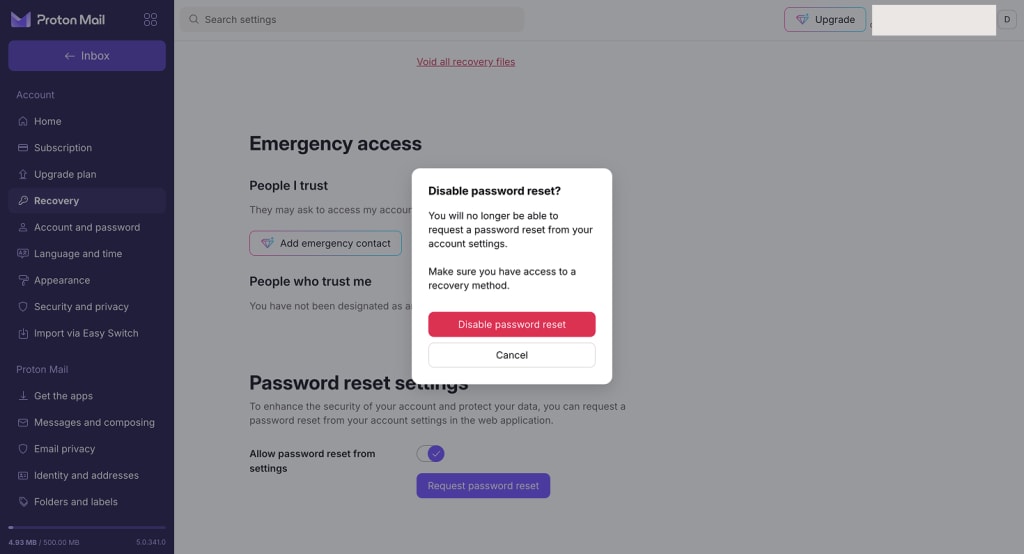
- Enter your password, then click Authenticate to confirm.

All done. You will no longer be able to request a password reset from your account settings.
I didn’t request a signed-in reset, but I got a notification about a password reset
Cancel the request immediately. Then, take the following steps to secure your account.
- Change your password
- Revoke all sessions — this signs you out from all devices aside from the one you’re using
- Enable two-factor authentication for increased account security
How to reset your password if you’re not signed in
If you lost your Proton password while signed out, you’ll need to recover your account.